

PDF is one of the most common ways to share and store important information these days. Whether it’s a legal contract, research paper, financial report, or an eBook, PDFs are the go-to choice due to their openness, because formatting is preserved across devices. However, this convenience also prolongs the process of extracting the data in PDFs, epeciaslly for large or complex files.
This is where PDFGPT comes in. PDFGPT is an AI-based PDF summarizer and data extractor that changes everything you do when working with PDFs. This is because using cutting-edge AI, PDFGPT simplifies data extraction and summary from text PDFs and image-based PDFs while saving you lots of time and effort.
This is a guide to how to use PDFGPT for effective extraction of data from PDFs, and it’s going to make your work with document analysis much faster and more efficient. Firstly let’s understand what is PDFGPT AI PDF summarizer tool?
What is PDFGPT
PDFGPT is an advanced tool in AI meant to help one extract meaningful information from PDFs in a timely and errorless manner. It uses a mix of NLP and machine learning algorithms to go through both text-based and image-based PDFs. No data point will be left unprocessed. So, whether one needs raw extraction of text from a document or a summary of a whole document, one can easily pick out specific dates, names, or figures that might be inside the document.
PDFGPT provides an AI PDF summarizer that quickly enables users to extract the data of interest with the minimum possible manual effort. It accepts long or complex PDFs that contain structured data, such as tables and charts.
What is PDF Data Extraction?
This extraction of PDF data refers to pulling particular information from a PDF document. It can be text, tables, images, charts, or any specific data points like dates, names, and numbers. Depending on the type of document, it might be an easy or extremely tough thing.
This process is almost straightforward for text-based PDFs because their text is extractable. Optical Character Recognition has to be performed on image-based PDFs that are scanned PDFs to convert image-based PDF into editable text.
This is where PDFGPT AI PDF Summarizer comes in, using advanced AI to process both text-based and image-based PDFs, making it a powerful tool for anyone needing to extract and summarize PDF data quickly.
How to Extract Data from PDF Using PDFGPT Step-by-Step
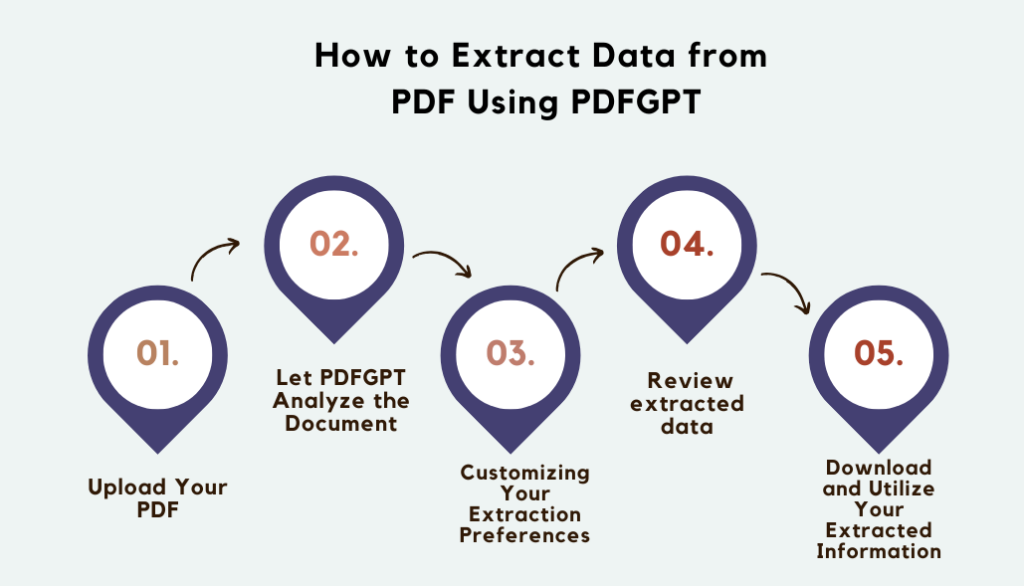
Step 1: Upload Your PDF
Upload the PDF file from which you wish to extract data. You can do this by dragging and dropping your file onto the PDFGPT platform, or you may use the file upload button to select your document.
Step 2: Let PDFGPT Analyze the Document
Once the document is uploaded, PDFGPT’s AI takes over. It will first scan through the PDF and determine text, tables, and images. After this process, the AI will extract content. If the PDF contains images, the AI will automatically apply OCR to read the text contained within the images.
Step 3: Customizing Your Extraction Preferences
Prior to taking out the information, you could specify how the information should be summarized. That is, take in all text; then, you select specific sections and pull out types of data specifically, such as just dates, names, or specific financial figures.
Step 4: Review extracted data
Once the data is extracted by AI, its summarization result is displayed before you. PDFGPT will structure the drawn-out information well so that they become readable; based on requirement, you will also like to tune it up at the output.
Step 5: Download and Utilize Your Extracted Information
You will now be satisfied with the data that you retrieved and download it in other formats such as text, Word, or Excel. Therefore, you will use this data in other projects, reports, or analysis tools.
Why PDFGPT for PDF Data Extraction?
PDFGPT is an extremely powerful tool that extracts, summarizes, and processes data from PDFs, making it a great option for both personal and professional use. Here’s why PDFGPT stands out as the go-to tool for PDF data extraction:
1. Time-Saving Efficiency
Manually extracting data from PDFs is a tedious, error-prone process, especially with large or complex documents. PDFGPT AI PDF Summarizer does all this work for you, reducing the time spent on extracting relevant information by leaps and bounds. What would take hours of manual effort can be accomplished in a fraction of the time, leaving you to focus on analysis and decision-making rather than data extraction.
2. Correct and Reliable Outcome
PDFGPT is one of the highly advanced algorithms applied to artificial intelligence. It extracts data with a very high level of accuracy, recognizing the key points, structures, and patterns in a document so that the extracted data would be relevant as well as appropriately formatted. Use of PDFGPT ensures reliable results and limits the scope for human error so that your analysis would be much more reliable.
3. Compatibility of PDF With Text and Image-Based
PDFGPT can read and process text-based and image-based PDFs. When it is text-based, PDFGPT can directly extract the content. If the PDFs are image-based or scanned, PDFGPT uses OCR (Optical Character Recognition) to identify the text in images so that information from even scanned documents can be processed.
4. Customizable Data Extraction and Summaries
Not all PDFs are created equal, and with PDFGPT, you have control over exactly how much information you’d like in your summary if you’d like it focused on particular areas of the document or want only to pull out dates, numbers, or names. All these choices make PDFGPT adaptable to your exact requirements, helping smooth the way to greater efficiency.
5. Ease of use interface
PDFGPT was created with ease so that the tool is very accessible to people of all skill levels, from technophobes to tech wizards. The interface makes it easy to upload PDFs, extract and summarize data, and download results—all within a few clicks. You won’t need special skills or software to get full use of the PDFGPT capabilities.
6. Faster Workflow and Increased Productivity
By automating the process of PDF data extraction, PDFGPT really speeds up your workflow. Quicker extraction and summarization help you process more documents in less time. This gives you more productivity and keeps you ahead of deadlines. You can also manage a large volume of data without any added strain.
7. Seamless Integration with Other Systems
Once you’ve extracted the information, you can download PDFGPT for further use. It offers its users many formats, such as text, Word, and Excel, to ease the importing of extracted information in reports, analysis, or business systems into a workflow without interruption or breaks.
8. Low-Cost Option
By automatically extracting data from your PDFs, PDFGPT saves you a lot of labor time and thus saves you more time and resources. This way, it makes the whole process cheap for businesses, researchers, or individuals to process many documents efficiently and cost-effectively.
Conclusion
PDFGPT makes PDF data extraction fast, error-free, and trouble-free for you. It allows either text-based or image-based PDFs for its users, hence making it possible to streamline the process and summarize the work done within a fraction of the time that could otherwise be taken for doing the work, hence saving you and your productivity at the workplace. With AI and customization, this software presents a holistic user interface, which is more suited to handle PDF document tasks.
If you often work with large or complex PDF documents, try PDFGPT today and experience the future of PDF data extraction. Say goodbye to manual extraction and embrace the power of AI to simplify your document processing tasks!